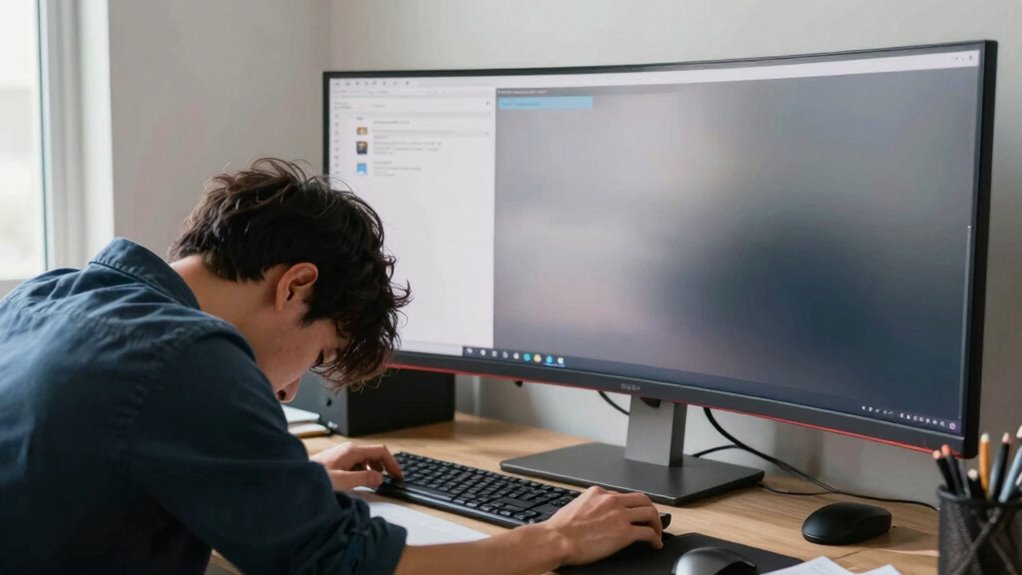

The biggest ultrawide monitor setup mistake that wrecks your neck is positioning the screen too low, too far, or angled improperly, causing you to tilt your head or strain your neck over time. Many people forget to align the top of the screen with their eye level or leave the monitor off-center. Adjusting your setup correctly can prevent discomfort now and long-term issues—stay tuned to learn how to optimize your posture and avoid these common errors.
Key Takeaways
- Positioning the ultrawide monitor too low or too high causes neck strain from constant tilting or looking up/down.
- Failing to align the top of the screen with eye level leads to prolonged neck extension or flexion.
- Not adjusting the monitor’s tilt and height for ergonomic comfort results in awkward neck angles.
- Placing the monitor off-center or at an angle increases neck twisting and discomfort over time.
- Using a fixed stand instead of an adjustable mount prevents proper alignment, causing sustained neck tension.
Why Monitor Height and Position Impact Neck Health
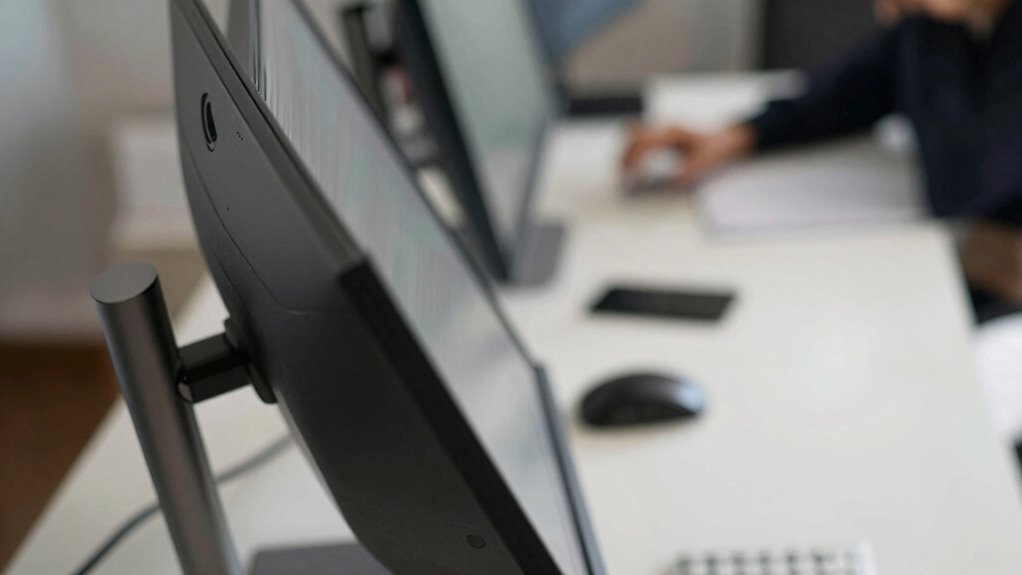
Your monitor’s height and position directly affect your neck health because improper setup can cause strain and discomfort over time. Using a monitor arm allows you to adjust your ultrawide monitor to eye level, preventing you from tilting or twisting your neck. A well-positioned screen reduces the need to crane your neck upward or downward, which can lead to muscle fatigue and pain. Additionally, proper placement minimizes screen glare, which can cause you to lean forward or shift your head to see clearly. By setting your monitor at the correct height and angle, you promote better posture and reduce neck strain. Proper monitor positioning is essential for supporting long-term neck health and avoiding chronic discomfort. Regularly adjusting your monitor setup based on ergonomic principles can further enhance comfort and prevent issues, especially when considering the optimal monitor height for your specific workspace. Ensuring your monitor is at an appropriate height encourages correct posture habits that can reduce the risk of injury over time.
Common Mistakes When Setting Up Your Ultrawide Monitor
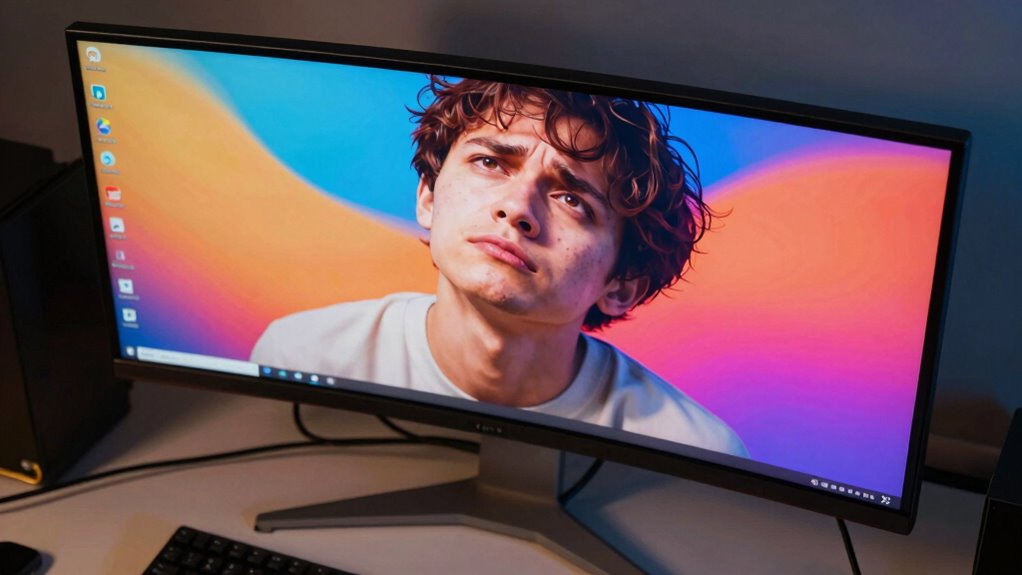
One common mistake when setting up an ultrawide monitor is placing it too far back or too high on your desk, which can cause neck strain and reduce your comfort. Many overlook proper monitor calibration, leading to misaligned colors or poor image quality that strains your eyes. Additionally, neglecting screen brightness adjustments can cause eye fatigue, especially if it’s too bright or too dim for your environment. Failing to calibrate your monitor correctly might also result in distorted visuals that make you crane your neck or squint. To avoid these issues, position your ultrawide at eye level, keep brightness balanced with ambient lighting, and guarantee your monitor is calibrated for superior image clarity. Proper setup prevents discomfort and helps you maintain good neck health during long work hours. Paying attention to monitor placement can significantly improve your overall comfort and reduce strain over time, especially when considering ergonomic principles for optimal setup. Ensuring your monitor is properly adjusted for your workspace is an important step toward a healthier and more comfortable viewing experience. Additionally, practicing regular breaks and stretching can help mitigate long-term discomfort associated with improper setup.
How to Properly Align Your Ultrawide Screen for Comfort
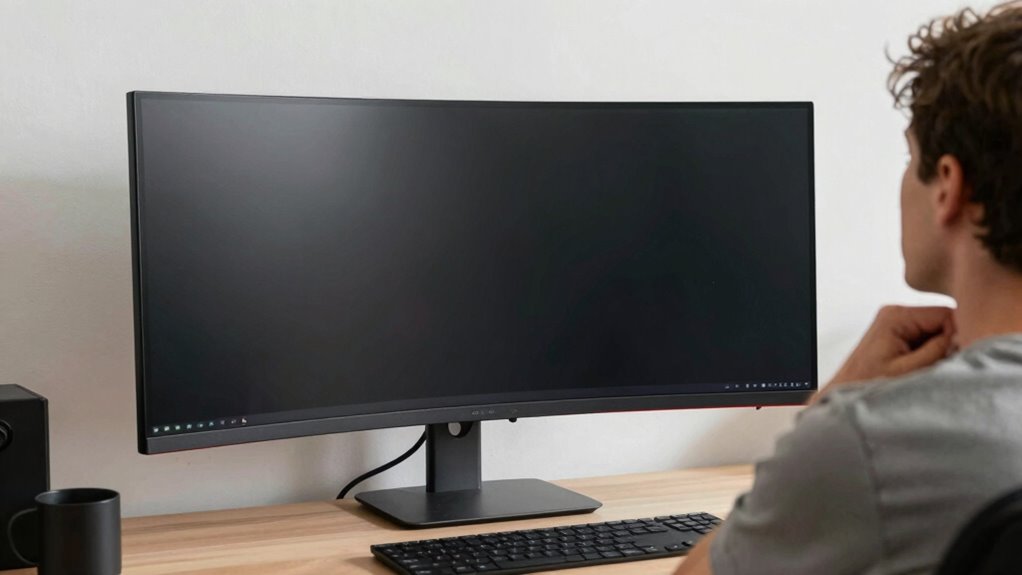
To guarantee maximum comfort when using an ultrawide monitor, proper alignment is essential. Start by adjusting your monitor stands or ergonomic accessories so the top of the screen is at or slightly below eye level. Your monitor should be directly in front of you, with the center aligned with your line of sight. This minimizes neck strain and encourages good posture. Use adjustable monitor stands to fine-tune height and tilt, ensuring you don’t have to crane your neck or lean forward. Keep the monitor at a comfortable distance—roughly arm’s length. Proper alignment reduces eye fatigue and helps maintain a relaxed neck and shoulders during long work sessions. Additionally, consider ergonomic workspace setup to optimize overall comfort and reduce the risk of strain during extended computer use. Regularly check and adjust your setup to maintain ideal ergonomic positioning, and incorporate proper monitor positioning techniques to further support your health. Remember that visual ergonomics play a crucial role in preventing discomfort and ensuring sustained productivity. Maintaining consistent monitor placement can also prevent repetitive strain injuries over time.
What Is the Best Viewing Distance and Angle for Ultrawide Monitors?

Finding the right viewing distance is key to reducing eye strain and maximizing your monitor experience. The ideal angle helps keep your neck comfortable and your focus steady. Let’s explore how to position your ultrawide monitor for best comfort and performance.
Optimal Viewing Distance
Achieving the ideal viewing distance for an ultrawide monitor is essential to enjoying its full benefits without straining your eyes or sacrificing comfort. Typically, you should sit about 1.5 to 2.5 times the monitor’s diagonal size away from the screen. Proper monitor calibration ensures that the display’s brightness, contrast, and color settings are refined, reducing eye fatigue. When calibrating your monitor, aim for a distance that allows you to comfortably see the entire screen without needing to lean forward or strain your neck. Keep in mind that screen calibration isn’t just about color; it also helps you adjust the size and sharpness so you can view content clearly at your chosen distance. Maintaining this suitable distance minimizes eye and neck strain, enhancing your overall viewing experience. Additionally, considering the contrast ratio of your monitor can further improve image clarity and reduce eye strain during extended use.
Ideal Monitor Angle
The ideal viewing angle for an ultrawide monitor depends on positioning it at a height where your eyes are level with the top third of the screen, allowing for a natural and comfortable line of sight. Keep in mind that proper monitor calibration and adjusting screen brightness enhance comfort and reduce eye strain. The monitor should be tilted slightly back, around 10-20 degrees, to minimize neck movement. Your eyes should view the screen directly, avoiding excessive tilting or turning. Use this table to help optimize your setup:
| Aspect | Recommended Setting | Purpose |
|---|---|---|
| Monitor height | Eyes aligned with top third of screen | Comfort and proper neck posture |
| Tilt angle | 10-20 degrees backward | Reduce neck strain |
| Brightness | Adjust to match ambient light | Minimize eye fatigue |
Adjust Your Desk and Chair for Better Posture and Neck Support
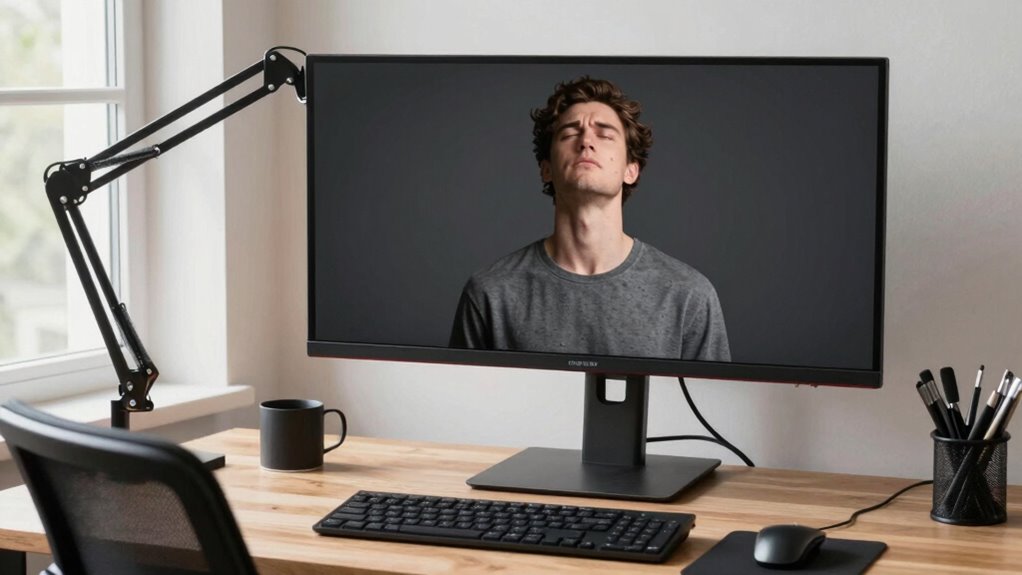
To improve your posture and reduce neck strain when using an ultrawide monitor, start by adjusting your desk and chair to the right height and position. Your chair should support your lower back and allow your feet to rest flat on the floor. Confirm your monitor is eye level to avoid tilting your head up or down. Use ergonomic keyboards and wrist supports to keep your wrists straight and reduce overall tension. Keep your elbows close to your body at a 90- to 100-degree angle. Sitting with proper support helps maintain a neutral spine and minimizes neck strain. Additionally, monitor placement is crucial to ensure your neck remains in a neutral position during extended use. Proper ergonomic setup can significantly decrease the risk of strain and improve your overall comfort. Paying attention to screen positioning can also help you avoid awkward neck angles that contribute to discomfort over time. Regularly checking and adjusting your posture throughout the day is essential to prevent long-term issues and maintain comfort. Maintaining awareness of your body alignment can further enhance your ergonomic setup and reduce fatigue.
Choosing Monitor Stands and Mounts to Reduce Neck Strain
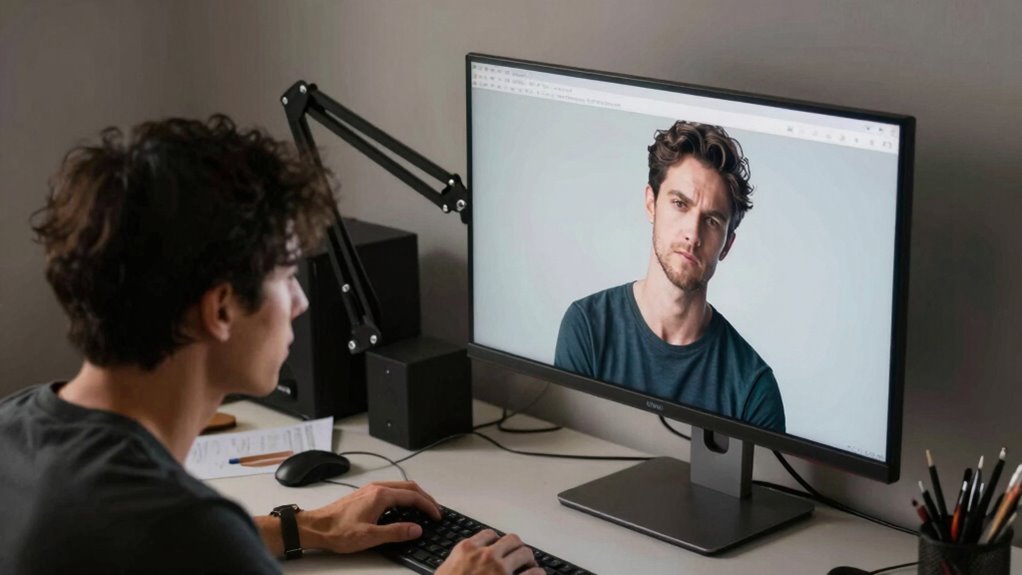
Choosing the right monitor stand or mount can make a big difference in reducing neck strain. You want an adjustable mount that lets you set the monitor at eye level for comfortable viewing. Make sure the mount has flexible features so you can easily customize the height and angle to fit your posture.
Optimal Mount Height
Selecting the right monitor height is essential for reducing neck strain, especially when setting up an ultrawide display. Your monitor should be positioned so that the top of the screen is at or slightly below eye level, allowing you to look straight ahead comfortably. Proper monitor calibration, including adjusting screen brightness, enhances visibility, reducing eye fatigue and encouraging a natural head position. To find your ideal height, consider these factors:
| Positioning Factor | Recommended Setting | Impact on Neck Strain |
|---|---|---|
| Eye level | Top of screen at eye | Keeps neck in a neutral stance |
| Monitor tilt | Slight downward tilt | Promotes comfortable viewing |
| Distance | 20-30 inches from eyes | Prevents leaning forward |
| Screen brightness | Adjust to ambient light | Reduces eye strain |
| Calibration | Fine-tune display settings | Ensures clarity and comfort |
And remember, ergonomic setup plays a crucial role in maintaining comfort during extended use. Additionally, monitor position adjustments can significantly improve overall comfort and reduce fatigue during long periods of use.
Adjustable Mount Features
Adjustable monitor mounts and stands are essential tools for optimizing your setup and reducing neck strain. Look for mounts with height, tilt, and swivel adjustments so you can position your ultrawide monitor at eye level, preventing you from craning your neck. An ergonomic keyboard paired with a properly adjusted monitor keeps your hands and eyes aligned, minimizing tension. Additionally, consider footrest positioning to support your posture and reduce lower back and neck discomfort. Flexible mounts allow quick adjustments throughout the day, helping you maintain a comfortable, healthy posture. Proper monitor placement is crucial for ergonomic comfort and can be easily achieved with adjustable mounts. By customizing your monitor’s placement and supporting your ergonomic needs, including footrest and keyboard positioning, you minimize strain and create a workspace that promotes better neck health. Incorporating ergonomic accessories into your setup further enhances comfort and reduces the risk of strain over time. Ensuring your workspace setup aligns with healthy ergonomic practices can significantly improve your overall comfort and prevent long-term discomfort. Additionally, integrating adaptive lighting can reduce eye fatigue, making it easier to maintain proper posture over extended periods.
How to Recognize and Address Signs of Neck Strain
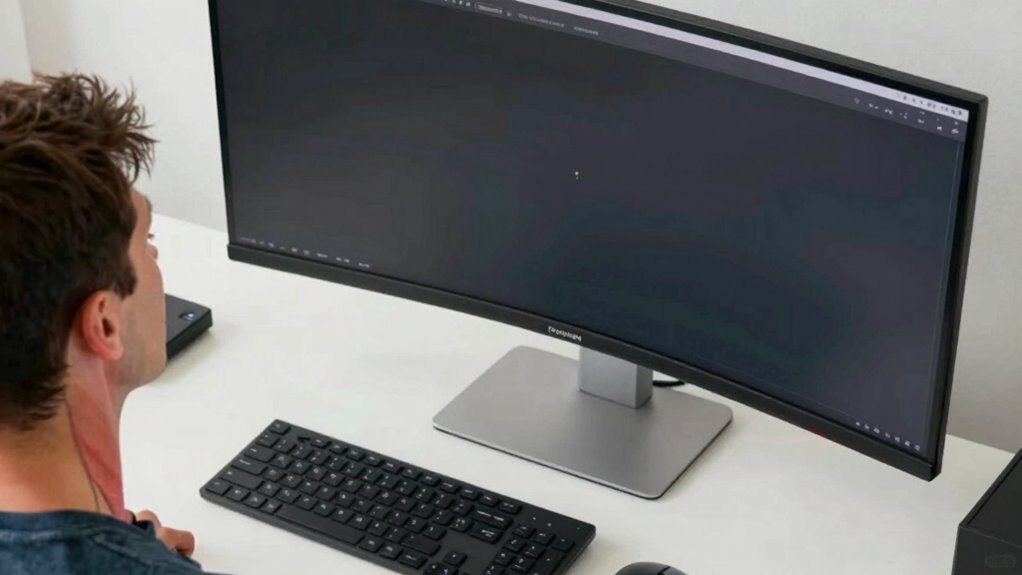
Neck strain often develops gradually, making it easy to overlook the early warning signs. Stay alert to discomfort like persistent soreness, stiffness, or headaches. To address these signs:
Neck strain develops gradually; watch for soreness, stiffness, or headaches to prevent long-term issues.
- Incorporate ergonomic exercises into your routine to strengthen neck muscles and improve posture.
- Take regular breaks to avoid prolonged strain and reduce tension.
- Use gentle neck massage to relax tight muscles and increase blood flow.
If you notice persistent pain or stiffness, don’t ignore it—adjust your setup or seek professional advice. Recognizing these signs early helps prevent long-term problems. Remember, maintaining proper ergonomics is key. Regularly performing ergonomic exercises and incorporating neck massage can markedly ease strain and keep your neck healthy, especially during long hours at your ultrawide monitor.
Ergonomic Accessories to Help Maintain a Healthy Setup
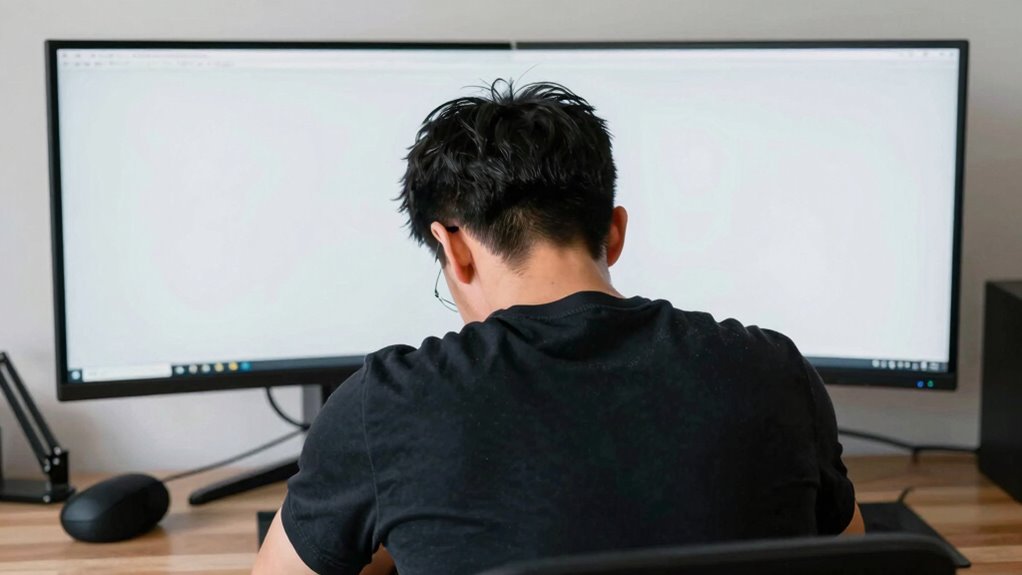
Using the right ergonomic accessories can make a significant difference in maintaining a healthy, comfortable setup for your ultrawide monitor. Ergonomic accessories like adjustable monitor mounts, keyboard pads, and wrist supports help you position your screen correctly and reduce strain. Proper monitor calibration ensures the display’s height, brightness, and contrast are optimized for your eyes, preventing glare and fatigue. An ergonomic stand lets you adjust your monitor’s height and tilt, aligning it with your eye level. Adding a document holder or a sit-stand desk converter encourages better posture and movement throughout the day. Together, these accessories promote a balanced setup, minimizing neck and eye strain while enhancing comfort and productivity during long work sessions.
Step-by-Step: Reconfigure Your Ultrawide Monitor for Comfort
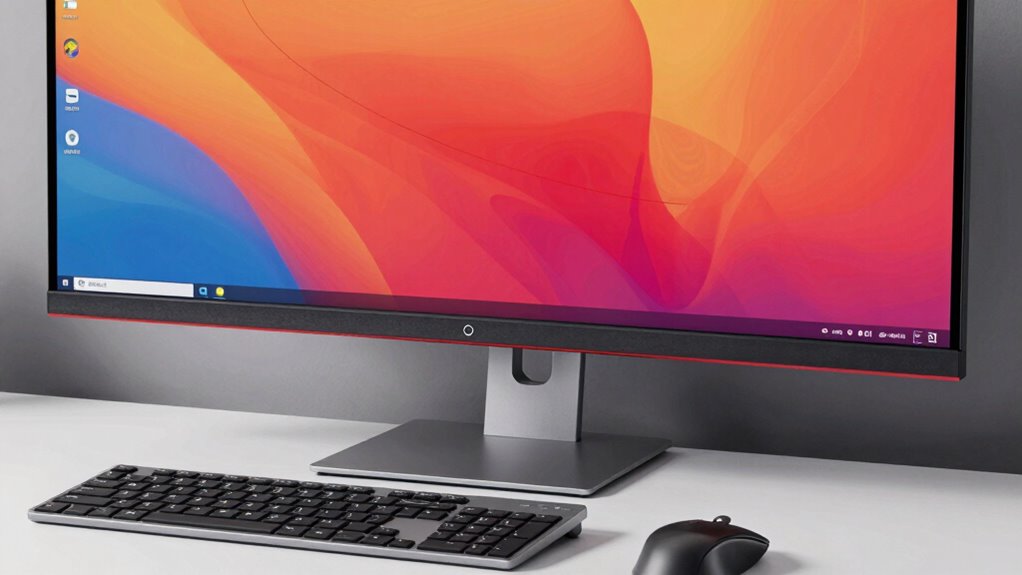
Once you’ve set up your ergonomic accessories, the next step is to reconfigure your ultrawide monitor for ideal comfort. Start by adjusting your monitor stand so the top of the screen is at eye level. Then, confirm the monitor is directly in front of you, not turned or angled. Finally, follow these steps:
- Position the monitor so the entire screen is within your natural line of sight.
- Adjust the tilt and height to prevent neck strain.
- Use ergonomic accessories like monitor stands or risers to fine-tune the height and angle.
This setup minimizes neck and eye strain and promotes better posture. Proper reconfiguration guarantees your ultrawide monitor supports your comfort during extended use and reduces the risk of long-term discomfort.
Frequently Asked Questions
Can an Ultrawide Monitor Cause Long-Term Neck Problems?
Yes, an ultrawide monitor can cause long-term neck problems if you don’t use ergonomic accessories or set the monitor height correctly. If you sit too close or turn your head frequently, strain builds up. Adjust the monitor height so the top of the screen is at eye level, and use ergonomic accessories like a monitor stand or adjustable arm. This helps reduce neck strain and prevents long-term issues.
Are There Specific Ergonomic Guidelines for Ultrawide Monitor Setups?
Think of your ultrawide monitor as a window to your work world. To keep your neck happy, set the monitor height so the top is at eye level, like a steady lookout. Keep the monitor distance about an arm’s length away, avoiding strain. Follow ergonomic guidelines by adjusting your chair and desk height, ensuring your neck stays aligned and comfortable, preventing long-term discomfort.
How Often Should I Adjust My Monitor Position During the Day?
You should adjust your monitor position regularly, ideally every 30 to 60 minutes, to maintain proper desk ergonomics. Keep your monitor height so the top of the screen is at or slightly below eye level, and make certain your neck stays straight. Small adjustments prevent strain, helping your neck stay comfortable throughout the day. Regularly checking and tweaking your setup keeps your workspace ergonomic and reduces discomfort.
Do Curved Ultrawide Monitors Reduce Neck Strain Effectively?
Curved ultrawide monitors can reduce neck strain effectively because they promote better monitor placement and help you maintain a natural viewing angle. To maximize benefits, use ergonomic accessories like adjustable stands and monitor arms to keep the screen at eye level. Proper monitor placement guarantees you don’t twist or crane your neck, reducing discomfort. Remember, ergonomic setup is key to long-term comfort when using a curved ultrawide monitor.
What Are the Best Tips for Maintaining Good Posture With Ultrawide Screens?
To maintain good posture with ultrawide screens, you should adjust your monitor height so the top of the screen is at eye level, preventing neck strain. Use ergonomic accessories like monitor stands or arm mounts for proper positioning. Keep your back straight, shoulders relaxed, and sit at a comfortable distance from the screen. Regular breaks and stretching also help reduce fatigue and promote better posture throughout your workday.
Conclusion
By setting up your ultrawide monitor the right way, you’ll turn your workspace into a haven rather than a neck nightmare. Think of your setup like a well-tuned guitar—every part must be in harmony for smooth playing. When you prioritize proper height, distance, and support, you’ll keep neck strain at bay and enjoy your screen time like a pro. Your comfort is the key to a pain-free, productive day—so tune your workspace accordingly!