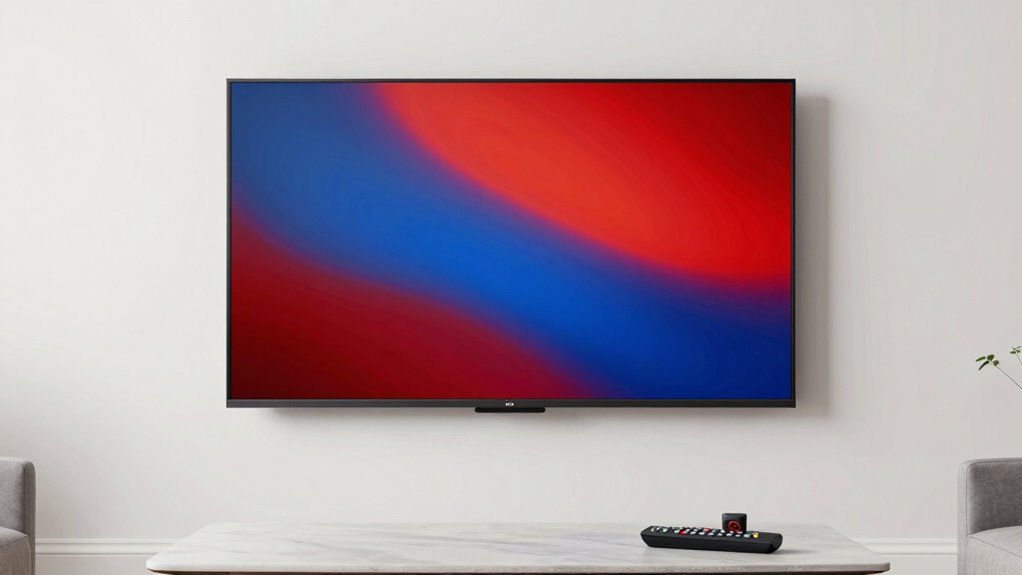

To instantly improve your TV picture, start with the built-in presets like “Cinema” or “Standard” to find a balanced look. Adjust brightness for deeper blacks, contrast for sharper images, and color for more vibrant, realistic skin tones. Fine-tune sharpness and motion settings to reduce noise and ghosting. Save your ideal setup for easy access later. Keep exploring for simple tips that make your viewing experience clearer and more immersive.

Get the latest gadgets delivered free — and shop member deals
- Fast, free delivery on millions of items
- Access to Prime Big Deal Days deals on October 6–7
- Prime Video, Amazon Music and more included
Key Takeaways
- Start with built-in presets like “Cinema” or “Standard” for a quick, balanced picture setup.
- Adjust brightness, contrast, and white balance to achieve natural, vibrant colors without overdoing it.
- Use test patterns or familiar scenes to fine-tune color, tint, sharpness, and motion settings accurately.
- Lower sharpness and noise reduction to prevent halos and overly smooth images for a cleaner picture.
- Save your preferred settings and regularly recalibrate to maintain the best picture quality over time.
As an affiliate, we earn on qualifying purchases.
Why TV Calibration Makes Your Picture Look Better

Calibrating your TV can substantially improve picture quality by ensuring the colors, contrast, and brightness are set accurately. One key aspect is adjusting the color temperature, which affects how warm or cool the picture appears. When your viewing environment has ambient light, calibrating for that setting helps prevent washed-out or overly harsh images. Proper calibration makes the colors more natural and true-to-life, enhancing your overall viewing experience. If you ignore calibration, your TV might display images that look dull, overly vibrant, or unbalanced. Adjusting these settings to suit your room’s lighting and your personal preferences makes your movies, shows, and games look sharper and more realistic. Ultimately, calibration helps your TV show its best possible picture quality in your unique environment. Understanding display settings is essential for achieving the best results. Additionally, being aware of ambient light conditions can guide you in fine-tuning your calibration process for optimal viewing, especially considering how screen glare can impact perceived image quality. Incorporating knowledge of professional calibration standards can further refine your setup for a cinema-like experience at home.
As an affiliate, we earn on qualifying purchases.
Start Here: Using Presets and Basic Tools to Quickly Calibrate Your TV
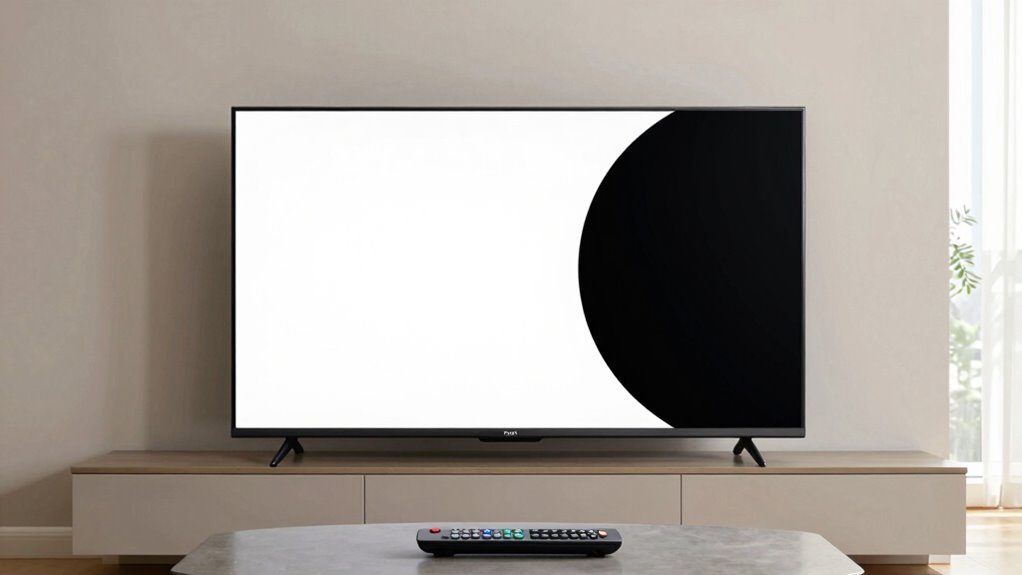
Once you’ve understood why calibration improves your picture, you can start with quick and easy methods to get decent results. The simplest way is to use your TV’s built-in presets, like “Cinema,” “Game,” or “Standard,” which are designed to optimize picture quality without much effort. These presets serve as a solid starting point, providing a balanced image for most viewing situations. Additionally, you can utilize basic calibration tools, such as test patterns available through streaming apps or free online resources. These tools help you assess picture quality and make minor adjustments. Remember, presets are meant to be a quick fix, so don’t worry if they’re not perfect. They give you a reliable foundation before fine-tuning with more detailed calibration.
As an affiliate, we earn on qualifying purchases.
Adjust Brightness and Contrast for Clearer, More Natural Images

Adjusting your TV’s brightness and contrast settings is essential for achieving clear, natural images. Proper brightness ensures black levels are deep without losing detail, while contrast sharpens the overall picture. To fine-tune these, start by checking screen uniformity, making sure there are no uneven patches or bright spots. Adjust brightness so blacks look rich but not crushed, and set contrast to deepen colors without causing whites to blow out. White balance plays a key role here, helping to keep colors accurate and natural. When these settings are optimized, your TV will display images with better depth, clarity, and realism. Additionally, understanding video calibration techniques can further enhance picture quality for a more immersive viewing experience. Regularly calibrating your TV using measurement tools can help maintain optimal settings over time. Small adjustments based on ambient lighting conditions can also significantly improve your viewing comfort and image perception.
As an affiliate, we earn on qualifying purchases.
Set Color and Tint for Vibrant, Realistic Colors

Getting the colors on your TV to look vibrant and realistic can really enhance your viewing experience. To do this, adjust the color and tint settings for better color accuracy and natural skin tones. Use a test pattern or a familiar scene to fine-tune these settings. Focus on achieving true-to-life skin tones, which indicate accurate color reproduction. Here’s a simple guide:
| Setting | Adjustment Tips | Purpose |
|---|---|---|
| Color | Increase or decrease slightly | Enhance overall vibrancy |
| Tint | Adjust for natural skin tones | Correct color balance |
| Brightness | Ensure colors aren’t washed out | Maintain depth and realism |
Fine-tuning these settings helps your TV produce vibrant, realistic colors without oversaturation or dullness. For even better results, consider exploring art care practices to maintain your TV and display environment properly.
Fine-Tune Sharpness and Motion Settings for a Clutter-Free Picture
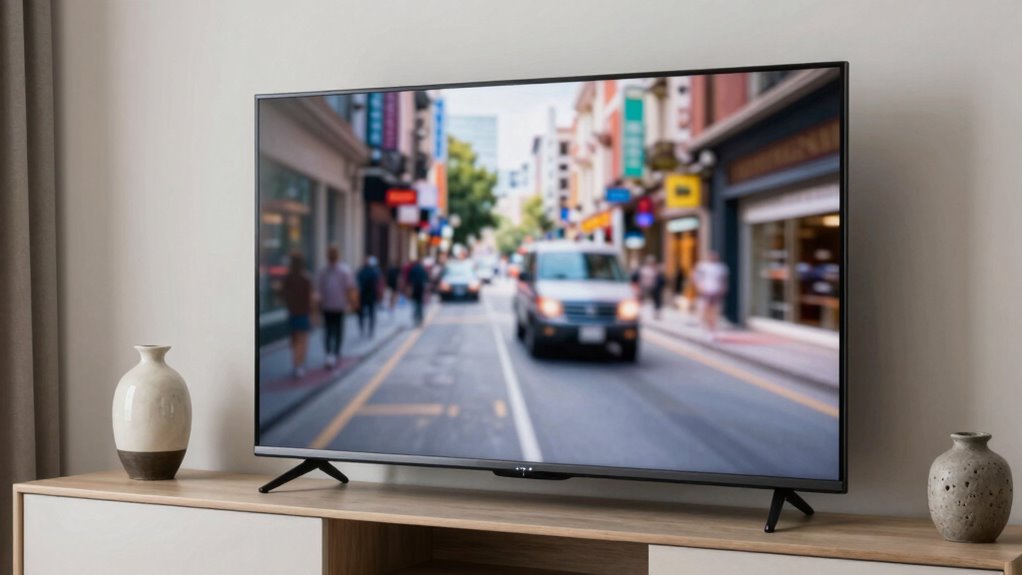
To get a clear picture, you need to adjust the sharpness carefully—too high can create noise, while too low may make the image look soft. Proper image processing techniques can help balance this to avoid unwanted artifacts. Adjusting these settings thoughtfully can prevent the introduction of artifacts that often degrade image quality. Next, optimize the motion settings to smooth out fast action without introducing distracting artifacts. By fine-tuning these options, you’ll enjoy a clutter-free, more natural viewing experience. Additionally, understanding how calibration techniques affect your TV’s display can help you achieve the best possible picture quality tailored to your environment. For enthusiasts aiming for cinematic quality, paying attention to color accuracy and contrast ratios will further enhance your viewing experience.
Adjust Sharpness Carefully
While it might be tempting to crank up the sharpness for a crisper picture, doing so can actually introduce unwanted noise and make the image look artificial. To achieve better picture clarity, you should make sharpness adjustments carefully. Over-sharpening can create halos around objects and distract from the content, while too little can make details seem dull. Find a balance that enhances details without adding artifacts. Additionally, understanding how Free Floating affects image stability can help you optimize your picture settings for a more natural look.
Optimize Motion Settings
Adjusting motion settings is key to creating a smooth, clutter-free picture, especially during fast-paced scenes. Turn off or reduce motion smoothing to prevent the soap opera effect, which can make movies look unnatural. If your TV offers judder reduction options, tweak them to smooth out jittery motion during camera pans and quick movements. Find a balance that minimizes judder without introducing unwanted artifacts or making images look overly processed. Typically, lowering motion smoothing settings improves clarity and reduces distraction. Remember, the goal is to enhance motion clarity while maintaining natural motion flow. Experiment with these controls until you find a setting that offers smoothness without sacrificing picture authenticity. Properly optimized motion settings make fast scenes clearer and more enjoyable. Trusted businesses near you can sometimes provide professional calibration services to help optimize these settings for the best picture quality. Understanding motion processing technology can also help you better tailor your TV’s settings for optimal viewing experience.
Minimize Unwanted Artifacts
Fine-tuning sharpness and motion settings is essential for reducing unwanted artifacts that can clutter your picture. Excessive sharpness creates halos around objects, while poor motion settings can cause judder or blur. Adjusting noise reduction helps eliminate graininess without sacrificing detail, and setting the black level correctly ensures shadows stay deep without losing contrast. Properly calibrated, your picture becomes cleaner and more natural.
- Reduce noise reduction to avoid a plastic or overly smooth look
- Lower sharpness to prevent halos around edges
- Fine-tune black level for richer shadows without crushing details
- Adjust motion settings to minimize judder and ghosting
These tweaks help you achieve a clutter-free picture, making your viewing experience more immersive and enjoyable.
Save Your Favorite Calibration Settings and Troubleshoot Common Issues

Saving your preferred calibration settings guarantees you can easily restore the picture quality whenever needed, especially if adjustments get lost or your TV resets. Use your remote controls or calibration software to save these settings directly to your TV or an external device. To troubleshoot common issues, check for signal interference, ensure your cables are secure, and reset picture modes if needed. Keep a record of your best settings for quick reference. Additionally, understanding power tools and heavy‑duty equipment can help you perform these adjustments more confidently and safely. When managing home maintenance tasks, having proper tools ensures precise and safe calibration adjustments. Recognizing the importance of craftsmanship and attention to detail can further enhance your calibration process, ensuring optimal picture quality every time. Proper piercing care and hygiene also plays a role in maintaining a safe environment during setup or adjustments, preventing potential infections or irritations that could distract from your calibration efforts. Being aware of proper safety procedures can further prevent accidents during calibration or maintenance activities.
Frequently Asked Questions
Can I Calibrate My TV Without Professional Tools?
Yes, you can do DIY calibration without professional tools. Start with your TV’s picture settings menu and adjust brightness, contrast, and color using the built-in options. While calibration tools offer more precision, basic tweaks can still substantially improve your picture. Use online guides or calibration videos for step-by-step instructions. Just take your time, and you’ll be surprised how much better your TV looks without needing expensive equipment.
How Often Should I Recalibrate My TV for Optimal Picture?
Imagine you’re a pioneer charting uncharted waters—your TV’s picture quality needs regular care. You should recalibrate your TV every six months to a year, especially if you notice dull colors or washed-out images. Calibration frequency helps maintain ideal picture quality and guarantees the colors stay true. Don’t wait too long; periodic adjustments keep your viewing experience sharp and vibrant, just like that first time you fell in love with your favorite show.
Do Different Content Types Require Different Calibration Settings?
Different content types do require different calibration adjustments to look their best. For example, movies often benefit from warmer, softer settings, while sports or gaming might need brighter, more vibrant colors for clarity. You should tweak your calibration based on content variations, ensuring each setting enhances the picture quality. Regular adjustments help maintain ideal viewing, especially as lighting conditions change or if you switch between different types of content frequently.
Is It Possible to Accidentally Damage My TV During Calibration?
Like Pandora opening her box, calibration can seem risky, but with proper calibration safety, you won’t cause accidental damage. As long as you follow recommended guidelines and avoid extreme adjustments, your TV stays safe. Don’t push settings beyond normal ranges or use unfamiliar tools blindly. Careful calibration guarantees you enhance your picture without risking damage, letting you enjoy a better viewing experience without worry.
What Are Signs That My TV Needs Recalibration?
If your picture quality looks dull, colors seem off, or you notice inconsistent brightness and contrast, your TV probably needs recalibration. These signs indicate that color accuracy has drifted, and the picture no longer reflects true images. You might also see flickering or ghosting effects. Regular recalibration restores ideal color and sharpness, ensuring your viewing experience stays vibrant and true to life.
Conclusion
Now that you’ve accessed your TV’s true potential, your picture will shine like a clear, sparkling lake at dawn. With simple tweaks, you turn your screen into a window that transports you into vibrant worlds, where colors pop and shadows whisper seamlessly. Just like tuning a musical instrument, your perfect picture is within reach—ready to enchant your viewing experience with every flicker of light. Enjoy your beautifully calibrated TV, and never settle for less.
Halloween Picks
halloween
As an affiliate, we earn on qualifying purchases.