
Use this guide to choose and set up a smart home bundle for a specific need, such as lighting, entry security, or temperature control. It is written for beginners who can use a smartphone and follow device instructions. You will check compatibility before buying, install and connect each device, and test the result. Allow 1–3 hours; battery-powered devices may take less time, while wired devices or network issues can add time.

Get the latest gadgets delivered free with Prime
- Fast, free delivery on millions of items
- Prime Video, Amazon Music and more included
- Member-only deals all year

Smart Home Starter Kit – Echo Hub, Amazon Smart Plug, and 4 Amazon Basics Smart Bulbs (Alexa+)
- ✔ Display: 8-inch touch screen, 1280 × 800
- ✔ Included devices: Echo Hub, Amazon Smart Plug, four Amazon Basics Smart Bulbs
- ✔ Connectivity: Dual-band Wi-Fi, Bluetooth, Zigbee, Thread, Matter, BLE Mesh

Ring Alarm 14-Piece Kit – Wireless Smart Home Security System with Expandable Sensors, Mobile App Control, 24/7 Professional Moni…
- ✔ Included components: Base station, keypads, contact sensors, motion detectors, range extender
- ✔ Intended home size: Described for 2–4 bedroom homes
- ✔ Connectivity: Ethernet, Wi-Fi, Z-Wave, Bluetooth; cellular backup with subscription
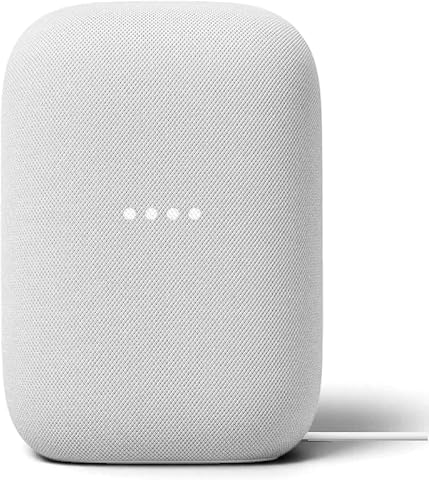
Google Nest Audio (3-Pack) Smart Speakers – Multi-Room Wireless Home Speaker Bundle with Bluetooth, Wi‑Fi, Assistant, Stereo Soun…
- ✔ Included speakers: 3 Google Nest Audio speakers
- ✔ Audio mode: Stereo; supports stereo pairing
- ✔ Control: Touch and voice
Difficulty: Beginner | Time: 1–3 hours, depending on the number of devices
What You’ll Need
Tools & Materials:
- Smartphone or tablet with the manufacturer’s app store access
- Reliable home Wi-Fi and its network name and password
- Smart home hub or compatible speaker, if the bundle requires one
- Basic hand tools specified by the device maker, if installation requires them
- Step stool for reachable, safe placement of sensors or bulbs
Knowledge:
- Basic smartphone setup, including installing apps and granting permissions
- Ability to identify your Wi-Fi network and check your router’s settings
- Basic familiarity with the rooms and devices you want to control
Decide which problem the bundle should solve before comparing products. Check that devices support the same platform and communication method. Some products need a hub; some work directly over Wi-Fi, while others use protocols such as Thread or Zigbee. Confirm whether your router has a 2.4 GHz network if a device requires it. Do not open electrical wiring or modify a fixed fixture unless the manufacturer permits it and you are qualified to do so.
Smart Home Starter Kit – Echo Hub, Amazon Smart Plug, and 4 Amazon Basics Smart Bulbs (Alexa+)
For households building a connected home from scratch, this bundle gives us the most balanced first step: an Echo Hub touchscreen, one smart plug, and four bulbs. Instead of concentrating on one room or one task, it combines a central control point with lighting and a simple way to connect a plug-in appliance. That breadth is why we rank it ahead of the Ring security kit and the Nest speaker pack for general smart-home use.The 8-inch display and guided setup give us a visible alternative to controlling everything by voice or phone. Its stated support for Zigbee, Thread, Matter, and BLE Mesh also creates room to add compatible devices later. That flexibility is a meaningful advantage over the more focused Ring and Google bundles, though compatibility does not mean every device or feature will behave identically. We should check the specific devices we plan to add.The tradeoff is that this is an Alexa-centered, internet-dependent setup. The hub needs continuous power and Wi-Fi or Ethernet for full functionality, so it is not a portable control panel or an offline-first system. Buyers already invested in Google Assistant may find the Nest Audio pack a more natural voice-control addition, while those prioritizing alarms and entry monitoring should choose Ring instead. This bundle makes the most sense when we want approachable control and basic lighting in one package.
Pros:
- Includes an 8-inch touchscreen hub, smart plug, and four bulbs.
- Guided setup and on-screen controls offer a clear starting point.
- Supports Zigbee, Thread, Matter, and BLE Mesh devices.
- Built-in motion and ambient light sensors support local control features.
Cons:
- Hub requires continuous power and internet connectivity for full functionality.
- Alexa+ and Alexa device support may not suit households committed to another assistant.
- Bluetooth hands-free profile is not supported.
Best for: We want an Alexa-based starting point with a touchscreen hub, several bulbs, and a smart plug included.
Not ideal for: We need a security alarm with contact and motion sensors, prefer Google Assistant, or require hub functions without an internet connection.
Bottom line: We recommend this bundle as the most rounded starting point when Alexa control, lighting, and basic device connections are the main goals.
“We recommend this bundle as the most rounded starting point when Alexa control, lighting, and basic device connections are the main goals.”
Ring Alarm 14-Piece Kit – Wireless Smart Home Security System with Expandable Sensors, Mobile App Control, 24/7 Professional Moni…
When the central need is knowing whether doors, windows, or rooms are protected, Ring offers the most purpose-built bundle here. Its 14-piece kit includes a base station, keypads, contact sensors, motion detectors, and a range extender, giving us a more complete security layout than the Amazon starter kit. It is designed for 2–4 bedroom homes, though the right sensor placement depends on the home’s actual floor plan.The app-based setup and Alexa compatibility make it possible to manage the alarm alongside other connected devices. Ring also lists Ethernet, Wi-Fi, Z-Wave, and Bluetooth connectivity, with cellular backup tied to a Ring Home Standard subscription. Optional 24/7 professional monitoring can add emergency response, but this is not a subscription-free security solution. We should account for ongoing service requirements before choosing it.Compared with the Amazon kit, Ring gives us dedicated entry and motion detection but does not include bulbs, a general-purpose touchscreen hub, or smoke and carbon monoxide detection. Compared with Nest Audio, it serves a completely different job: protection rather than room-filling sound. The rechargeable backup battery is useful during a power interruption, but it is specified for 24 hours, and the bundle can grow only through separately purchased accessories. This is the right pick when security is the priority, not when we want one box to cover every smart-home category.
Pros:
- Includes a broad set of security components for a multi-room setup.
- Expandable with additional sensors and accessories.
- App control and Alexa compatibility support convenient operation.
- Rechargeable battery backup is specified for up to 24 hours.
Cons:
- Professional monitoring, cellular backup, and some Alexa features require a subscription.
- Smoke and carbon monoxide detection are not included.
- Additional sensors and accessories must be purchased separately.
Best for: We want a multi-room wireless alarm kit with contact and motion sensors, app control, and the option of professional monitoring.
Not ideal for: We want a subscription-free setup, need smoke or carbon monoxide detection in the included bundle, or mainly want lighting and entertainment control.
Bottom line: We choose Ring when dedicated alarm coverage matters more than the broader lighting and device-control features in the Amazon kit.
“We choose Ring when dedicated alarm coverage matters more than the broader lighting and device-control features in the Amazon kit.”
Google Nest Audio (3-Pack) Smart Speakers – Multi-Room Wireless Home Speaker Bundle with Bluetooth, Wi‑Fi, Assistant, Stereo Soun…
This three-speaker pack is the clear choice when we want voice-assisted audio to reach more than one room. We can group the three Nest Audio speakers for multi-room playback, or make a stereo pair and use the remaining speaker separately. That arrangement offers more flexibility for music placement than either the Ring alarm kit or the Amazon starter kit, neither of which is centered on whole-home sound.Built-in Google Assistant adds hands-free access to music, information, and compatible smart-home controls. For a household already using Google’s ecosystem, the speakers can serve as a convenient voice interface as well as an audio bundle. The stated sustainable plastic and wood construction is another differentiator, while the freestanding design keeps placement simple as long as we have outlets and usable Wi-Fi coverage.Its narrow role is also its main limitation. Nest Audio provides no alarm sensors, hub screen, plug, or bulbs, so it does not offer the practical breadth of the Amazon kit. It is also not water resistant, making it unsuitable for outdoor or humid spaces. Bluetooth’s listed range is about 10 meters, so direct streaming works best nearby; multi-room setup may take extra attention for first-time users. We should choose this pack for sound and Google voice access, and skip it if we need an all-purpose smart-home starter bundle.
Pros:
- Three speakers can be grouped or arranged as a stereo pair plus a separate speaker.
- Built-in Google Assistant supports voice control and smart-home commands.
- Freestanding design allows flexible indoor placement.
- Uses sustainable plastic and wood materials.
Cons:
- Not water resistant, so it is unsuitable for outdoor or humid areas.
- Bluetooth range is limited to about 10 meters.
- Initial multi-room grouping may be complex for new users.
Best for: We want Google Assistant access and synchronized or stereo audio across several indoor rooms.
Not ideal for: We need alarm protection, included smart lighting or plugs, outdoor speakers, or a starter bundle that can act as a general control hub.
Bottom line: We recommend the Nest Audio 3-Pack when multi-room sound is the goal, while treating it as an audio addition rather than a full smart-home system.
“We recommend the Nest Audio 3-Pack when multi-room sound is the goal, while treating it as an audio addition rather than a full smart-home system.”
As an Amazon Associate we earn from qualifying purchases.
Before You Start
Keep the product boxes and setup instructions nearby. Check the return window and confirm that the bundle includes every required hub, power supply, bridge, or mounting part. Pick a location for each device before pairing it. Use strong, unique passwords for accounts, install official apps, and apply available firmware updates during setup. If you rent, check permission requirements before drilling or changing fixed equipment.
Step-by-Step Instructions
Step 1: Choose one job for the bundle
Write down the task you want the devices to perform, such as turning on a hallway light when motion is detected or receiving an alert when a door opens. List the rooms and the number of devices needed. Start with a small bundle that covers this use case; add devices later after the first setup works.
Tip: Separate required features from nice-to-have features. For example, decide whether you need remote access, voice control, or a local control option during an internet outage.
Check: You have a short list of rooms, devices, and the main action the bundle should support.
Step 2: Check platform and network compatibility
Compare the product listings and manufacturer specifications for every device in the bundle. Confirm that they work with your preferred smart home platform, phone, hub, and router. Check Wi-Fi band requirements, hub requirements, supported voice assistants, and whether devices from different brands can join the same automation.
Tip: A shared logo or similar product name does not guarantee that two devices work together. Check the exact model numbers and compatibility pages before purchasing.
Check: Each device lists support for the platform and network you plan to use, and you know whether a hub is required.
Step 3: Plan device placement and power
Choose a safe, practical location for each device. Check that sensors have a clear view of the area they monitor, plugs are reachable, and wireless devices are within range of the hub or router. For cameras, avoid pointing them at neighbors’ private spaces. Check battery type, outlet access, and any mounting limits.
Tip: Test a temporary placement before using adhesive or drilling. Metal cabinets, thick walls, and large appliances can weaken wireless signals.
Check: You can name a location for each device and identify its power source and mounting method.
Step 4: Install the official app and prepare accounts
Download the official app shown in the product documentation. Create or sign in to the account that will own the devices, then add your home or room names. Turn on Bluetooth and location access if the app requests them for nearby setup. Use a unique password and enable account protection features such as two-step verification when offered.
Tip: Avoid third-party apps that ask for your smart home password. Keep recovery details current so you do not lose control of the devices if you change phones.
Check: The app opens, your account is signed in, and the home or room structure is ready.
Step 5: Set up the hub first, if required
Connect the hub or bridge to power and, if instructed, to your router. Follow the app’s pairing sequence and wait for it to show the hub as online. Install any hub firmware update before adding other devices. Keep the hub in a central, ventilated location rather than inside a closed cabinet.
Tip: Do not reset a hub during an update or while its indicator shows that setup is still in progress.
Check: The app identifies the correct hub and reports that it is connected or ready to add devices.
Step 6: Pair and name each device
Unpack and power one device at a time. Use the app’s add-device flow, scan the supplied code if requested, and follow the on-screen pairing instructions. Assign each device to its actual room and give it a clear name, such as “Kitchen ceiling light” or “Back door sensor.” Update device firmware when the app offers an update.
Tip: If pairing fails, check the device’s reset instructions before trying again. Resetting can erase settings, so use the model-specific directions rather than guessing at button combinations.
Check: Each device appears online in the app with the correct room and an identifiable name.
Step 7: Install devices in their final positions
Follow the manufacturer’s mounting instructions. Secure battery devices with the supplied mount, plug in powered devices, and install bulbs only in fixtures with the correct base and ratings. For a wired device, follow its safety instructions and use a qualified electrician if the work is outside your skills or local rules.
Tip: Keep sensors away from heat sources, direct sunlight, and moving objects that could cause repeated triggers, unless the manufacturer recommends that placement.
Check: Devices are firmly placed, powered, and still connected in the app from their intended locations.
Step 8: Create one simple automation
Use the app to create a single automation based on your original goal. Choose a clear trigger, such as motion detected or a door opened, then choose the device action and any timing conditions. Start with a simple rule before adding schedules, multiple conditions, or several rooms.
Tip: Check whether the automation runs in the cloud or locally and whether it depends on an internet connection. Keep alerts and camera access limited to people who need them.
Check: The automation is saved and shown in the app with the intended trigger, action, and room.
Step 9: Test the bundle and adjust
Trigger the automation in the same conditions in which you expect to use it. Open and close a door, walk through a sensor’s coverage area, or switch a light from the app. Check response time, status indicators, notifications, and whether the device returns to the expected state. Adjust placement, sensitivity, timing, or network location if needed.
Tip: Test once while standing near the device and again from the usual location. This helps distinguish a pairing issue from a weak signal or a rule that needs adjustment.
Check: The intended action happens reliably, the app shows the right device status, and alerts arrive if you enabled them.
Common Mistakes to Avoid
- Buying devices before checking the exact hub, platform, or Wi-Fi requirements. — Verify model-specific compatibility and required network bands before checkout; include the hub or bridge in the budget if the bundle needs one.
- Pairing devices far from the hub or router, then installing them where the signal is weak. — Pair near the hub first, then test the connection from the planned location before making a permanent mount.
- Creating several complex automations before confirming the basic devices work. — Test each device individually, then build and verify one simple automation before adding more rules.
- Reusing weak passwords or sharing a main account with everyone in the household. — Use a unique account password, enable available two-step verification, and invite household members through the app’s access controls.
Troubleshooting
Problem: The app cannot find a device during pairing.
Solution: Confirm that the device is powered, in pairing mode, and close to the phone or hub. Check Bluetooth and Wi-Fi permissions, confirm the required network band, and follow the model’s reset steps if necessary.
Problem: The device pairs but goes offline in its installed location.
Solution: Move it closer to the hub or router, remove obstructions, and test again. If the signal remains weak, relocate the hub or use a compatible extender or mesh point supported by the manufacturer.
Problem: An automation runs at the wrong time or not at all.
Solution: Review the trigger, room assignment, schedule, time zone, and any conditions. Trigger the device manually to confirm it works, then test the automation again with only one condition enabled.
Problem: A device works in its own app but not in the chosen smart home platform.
Solution: Check that the model supports that platform and that account linking is complete. Update both apps and device firmware, then remove and relink the integration if the manufacturer’s guidance recommends it.
What Success Looks Like
The bundle is set up when every device appears online under the correct room and name, can be controlled from its app or supported platform, and performs the intended automation repeatedly from its installed location. Confirm that notifications arrive only where expected, household access is configured, and no device reports an unresolved update or connection issue.
Next Steps
Save the hub, router, and device model details with your home records. Review app access and automation rules when household members or routines change. Replace batteries when the app reports low power, install firmware updates, and retest the automation after changing your router or moving a device. Add another device only when you have a clear use case and have checked compatibility.
Frequently Asked Questions
Do all devices in a smart home bundle need to be from one brand?
No. Devices from different brands can work together when they support the same platform or compatible standard. Check the exact models and whether a shared hub or account link is required.
Do I need a smart home hub?
Some bundles need a hub or bridge; others connect directly to Wi-Fi or use a compatible controller. Check the product specifications before buying. A hub can also provide local control or support for devices that do not connect directly to your router.
Can I set up smart home devices without changing my router?
Usually, if the router supports the required Wi-Fi band and security settings. Some devices require a 2.4 GHz network or specific setup conditions. Check the instructions before pairing, and contact the router provider if you cannot access those settings.
What should I do if the internet goes down?
Local control and automations may keep working if the hub supports them, but cloud features and remote access may stop. Check the manufacturer’s offline behavior for each device and test it if local operation matters to you.
How can I add another device later?
Confirm that the new model supports your platform and hub, then use the app’s add-device flow. Assign it to the right room and test its individual control before connecting it to existing automations.