
External GPUs seem like a great way to boost your graphics performance on the go, but port limitations can hold you back. Wireless options are still laggy, and wired connections like Thunderbolt restrict mobility. Not all devices support these ports, which can cause bottlenecks and reduce performance. Power, heat, and compatibility issues also complicate things. If you want to understand how these challenges affect your setup and what might come next, keep exploring.

Get the latest gadgets delivered free with Prime
- Fast, free delivery on millions of items
- Prime Video, Amazon Music and more included
- Member-only deals all year
Key Takeaways
- Port limitations restrict compatibility, making external GPUs unusable on many laptops or mini PCs.
- Bandwidth constraints of Thunderbolt and other interfaces limit GPU performance and graphics quality.
- Limited ports often force users to sacrifice peripherals or rely on complex workarounds.
- External GPU setups can cause power, heat, and stability issues, reducing portability.
- Wireless connectivity remains unreliable for demanding graphics tasks, hindering seamless use.

While external GPUs promise to boost your computer’s graphics performance, they also reveal significant limitations that can’t be ignored. One of the biggest hurdles is wireless connectivity. Although the idea of plugging in a sleek external GPU and enjoying seamless, high-speed graphics sounds ideal, many setups rely on Thunderbolt or other wired connections that limit mobility. Wireless options are still in their infancy, and current solutions often introduce latency and bandwidth issues. This can result in lag or stuttering during intense gaming or demanding creative work, which defeats the purpose of upgrading your GPU externally. If you’re hoping for a truly cable-free experience, the current technology just doesn’t fully support it yet, and you might find yourself tethered to your desk more than you’d like. Bandwidth limitations in external GPU setups can further hinder performance, making it difficult to fully leverage the hardware’s capabilities. Power consumption is another critical factor that limits the practicality of external GPUs. These devices tend to draw a significant amount of electricity, which means your power supply needs to be robust enough to handle the load. If your setup isn’t prepared for high power demands, you risk system instability or even hardware damage. Additionally, the external GPU itself can generate a lot of heat, requiring active cooling solutions that add to overall power requirements and noise levels. As a user, you may find that your laptop’s battery life drops sharply when you’re running an external GPU, since they tend to consume more power than internal solutions. This makes portable use less feasible unless you’re plugged into a reliable power source, which defeats the convenience factor that makes external GPUs appealing in the first place. Furthermore, the port limits associated with external GPUs can be restrictive. Many external GPU enclosures are designed to connect via specific interfaces, such as Thunderbolt 3 or 4, which are not always available on all laptops or mini PCs. Even if your device supports these ports, they often have bandwidth caps that prevent the external GPU from reaching its full potential. This bottleneck means you might not see the expected performance boost, especially in newer, graphics-intensive titles or professional applications. The limited number of ports also means you may have to sacrifice other peripherals or find creative workarounds, which isn’t ideal if you’re aiming for a streamlined setup. In addition, compatibility issues with different hardware configurations can further complicate external GPU setups, leading to inconsistent performance or troubleshooting challenges. External GPU performance can also be impacted by software drivers, which sometimes lag behind hardware updates, adding an extra layer of complexity. Moreover, the need for firmware updates can introduce additional delays and complications in maintaining optimal performance. In the end, while the external GPU idea sounds brilliant on paper, these limitations—wireless connectivity issues, high power consumption, and port restrictions—highlight why it’s not yet the perfect solution for everyone. You might be excited about the potential, but current technology often presents hurdles that can diminish the overall experience.
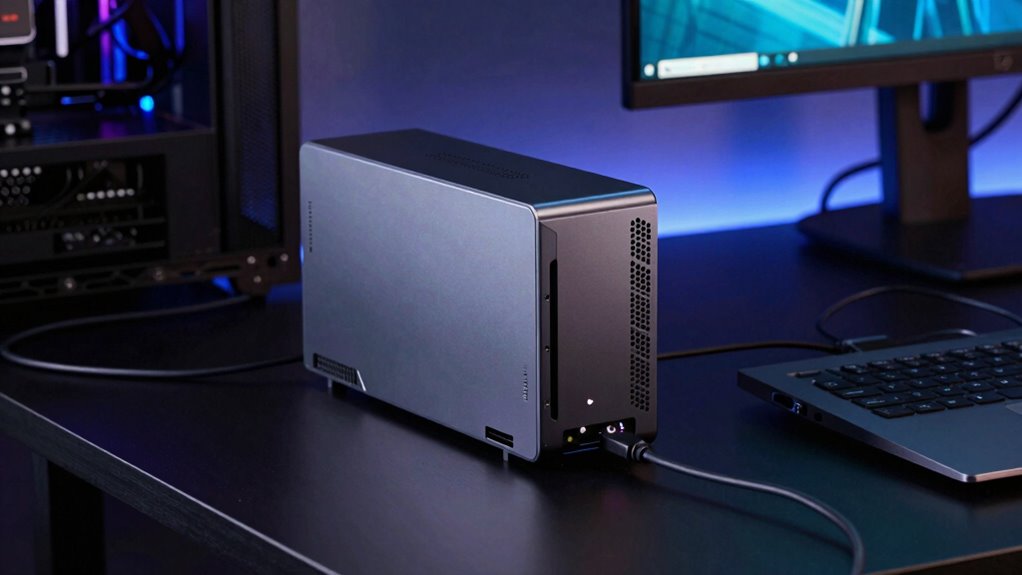
Thunderbolt 3 external GPU enclosure
As an affiliate, we earn on qualifying purchases.
As an affiliate, we earn on qualifying purchases.
Frequently Asked Questions
Can External GPUS Be Used With All Laptop Models?
External GPUs aren’t compatible with all laptop models. You need to check your laptop compatibility, especially the available ports like Thunderbolt 3 or 4, which are essential for connecting an eGPU. Port limitations can restrict your options, making it tricky if your laptop lacks the right ports. Always verify your laptop’s specifications before investing in an external GPU, as incompatible ports or hardware can prevent proper setup.
How Much Does an External GPU Setup Typically Cost?
An external GPU setup usually costs between $300 to $1,200. Think of it as building a tiny powerhouse; you’ll need a reliable power supply to handle the GPU’s energy needs and efficient cooling solutions to prevent overheating. Higher-end models with advanced cooling and power features push the price toward the top. Your investment depends on your performance expectations, but don’t forget to budget for these essential components to keep everything running smoothly.
Do External GPUS Improve Gaming Performance Significantly?
External GPUs can boost your gaming performance substantially, especially if your laptop’s integrated graphics struggle. However, you might face power bottlenecks that limit performance gains, and latency concerns could cause slight delays in responsiveness. While they improve frame rates and visuals, the actual benefit depends on your setup and game requirements. Keep in mind, port limitations might restrict bandwidth, preventing you from fully harnessing the GPU’s potential.
Are External GPUS Easy to Install and Set Up?
Setting up an external GPU is fairly straightforward, but you need to guarantee you have the right power supply and cable compatibility. You’ll connect the GPU via a compatible Thunderbolt or USB-C port, and then plug in the power supply to ensure stable performance. While installation generally involves plugging it into your laptop or desktop, double-checking compatibility and ensuring your cables and power supply meet the requirements will save you headaches later.
What Are the Main Compatibility Issues With External GPUS?
You might face compatibility issues with external GPUs, mainly due to power supply and bandwidth limitations. Your system needs a compatible Thunderbolt 3 or 4 port, and your power supply must provide enough wattage for the GPU. Bandwidth limits can bottleneck performance, especially with high-end GPUs. Ensuring your laptop or PC supports these connections and has adequate power and bandwidth helps avoid frustrating compatibility problems.
As an affiliate, we earn on qualifying purchases.
Conclusion
So, while external GPUs might seem like a shining star in your tech universe, they’re more like a flickering candle struggling against the wind. The port limits and bottlenecks are the shadows lurking behind that bright promise, reminding you that no solution is perfect. Sometimes, the dream of extra power comes with strings attached, teaching you that even the brightest ideas need a sturdy foundation to truly shine without flickering out.
As an affiliate, we earn on qualifying purchases.
As an affiliate, we earn on qualifying purchases.
Evergreen bestsellers Picks
bestsellers
As an affiliate, we earn on qualifying purchases.