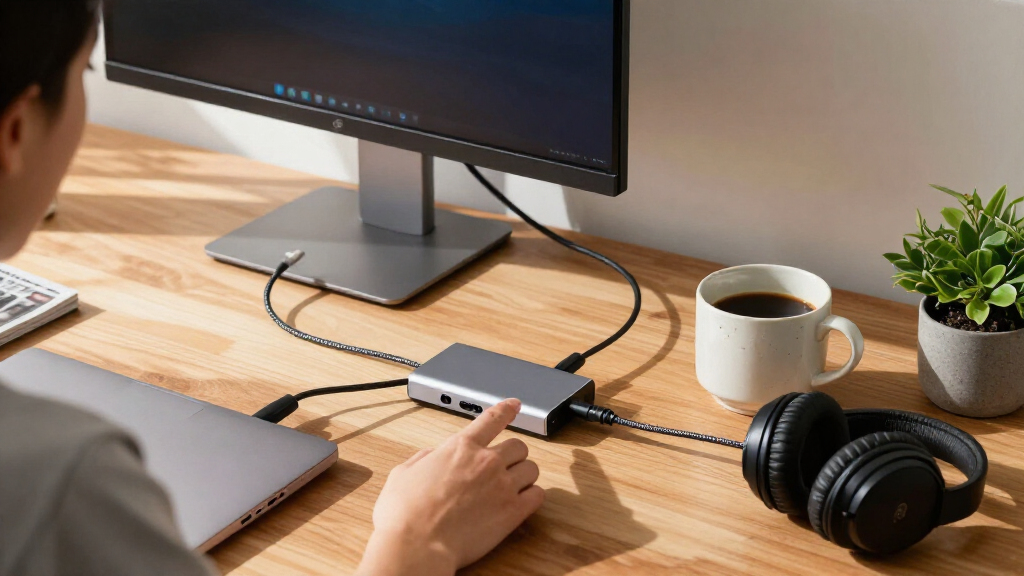
🔍 Read the full analysis: 6 Thunderbolt Docking Stations That Bring More To Your Desk on ThorstenMeyerAI.com

Get the latest gadgets delivered free with Prime
- Fast, free delivery on millions of items
- Prime Video, Amazon Music and more included
- Member-only deals all year
TL;DR
A buyer’s guide ranks six Thunderbolt docks, led by Anker’s Thunderbolt 5 model for buyers seeking newer-generation bandwidth and a broad selection of connections. The guide also compares five Thunderbolt 4 options, while warning that a dock’s ports and power figures do not guarantee compatibility with every computer.
ThorstenMeyerAI.com has ranked six Thunderbolt docking stations for different desk setups, as detailed in the original analysis, placing the Anker Prime 14-in-1 Thunderbolt 5 Dock first for buyers seeking newer-generation bandwidth and a broad connection set. The guide also compares five Thunderbolt 4 models, but stresses that laptop, operating-system and monitor compatibility—not port count alone—determines what a dock can actually support.
The six picks are the Anker Prime 14-in-1 Thunderbolt 5 Dock, Plugable TBT-UDM, Dell Pro SD25TB4, Plugable 100W Thunderbolt 4 dock, Dell WD19TB and Dell WD19TBS, alongside other options in this Thunderbolt docking station guide. The source presents them as options for distinct priorities rather than interchangeable products.
Anker’s model is the guide’s overall pick, with its Thunderbolt 5 positioning and large connection set as the main reasons. The Plugable TBT-UDM is described as a cross-platform Thunderbolt 4 choice, while the Dell Pro SD25TB4 is aimed at buyers seeking a current Dell dock. A second Plugable model is framed around 100W charging and dual-monitor use.
The two Dell WD19 models need separate consideration, the guide says: the WD19TB listing includes a 180W power adapter, while the WD19TBS is associated with 130W Power Delivery. These figures refer to different parts of the power setup and should not be treated as directly equivalent. The guide advises checking a laptop’s requirements before choosing between them.
The 6 picks
- 1
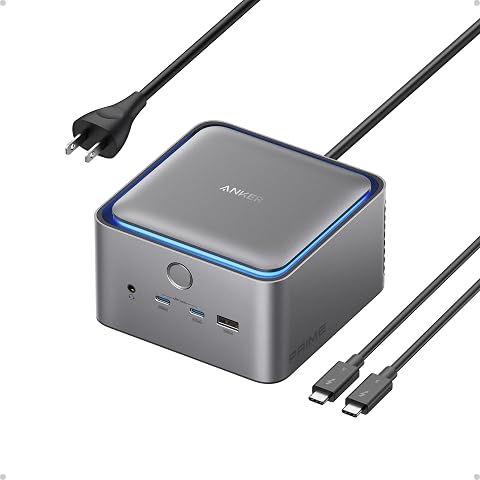 Anker Prime 14-in-1 Thunderbolt 5 Docking StationView on Amazon →
- 2
 Dell Pro Thunderbolt 4 Smart Dock SD25TB4 – USB-C Station 130W, 4 Displays 4K…View on Amazon →
- 3
 Plugable Thunderbolt 4 Dock with 100W Charging, Dual MonitorView on Amazon →
- 4
 Plugable Thunderbolt 4 Dock (TBT-UDM) for Mac and WindowsView on Amazon →
- 5
 Dell WD19TB Thunderbolt Docking Station with 180W AC AdapterView on Amazon →
- 6
 Dell Thunderbolt Dock WD19TBS with 130W Power DeliveryView on Amazon →
Compatibility Shapes the Choice
A dock can simplify a desk by connecting a laptop to monitors and peripherals through one setup, but the guide’s central point is that the advertised feature list does not settle whether a particular combination will work. Host computer capabilities, operating system, display connections and power needs all affect the result.
That matters for shoppers weighing the cost of a newer-generation dock against a mature Thunderbolt 4 model. A Thunderbolt 5 dock may offer more headroom, but a computer without the relevant support may not use those advantages. Conversely, a dock with suitable charging and display support can reduce cable clutter if it matches the laptop and the devices already on the desk.
The guide therefore treats the choice as a system-matching decision: check the laptop’s specifications, the monitors’ resolution and refresh rate, and the power requirement before relying on a dock’s headline port count or charging figure.
Products Worth Considering

LG UltraGear 27GX700A-B 27-Inch QHD OLED Gaming Monitor

Samsung Odyssey G55C 32-Inch QHD 1000R Curved Gaming Monitor

Logitech MX Creative Console with 9 Customizable Keys, Graphite
As an affiliate, we earn on qualifying purchases.
How the Six Picks Differ
The ranking compares one Thunderbolt 5 dock with four Thunderbolt 4 options—the Plugable TBT-UDM, Dell Pro SD25TB4, Plugable 100W model and two Dell WD19 variants. The source says it weighs generation, compatibility, charging, display support, port variety and how clearly each model suits a buyer’s needs.
Its ordering reflects those distinctions: Anker leads for newer-generation bandwidth and connection breadth; the TBT-UDM and Dell Pro SD25TB4 are presented as notable Thunderbolt 4 alternatives for different setups; and the WD19 models rank lower, with the source advising particular care around their power configurations and model age. The other Plugable dock addresses buyers who prioritize the stated 100W charging and dual-monitor use.
The guide also recommends checking the exact computer port specification. A USB-C-shaped connector does not, by itself, establish that a computer supports Thunderbolt. For displays, buyers are advised to confirm the full configuration for their computer and operating system, including whether connections use HDMI, DisplayPort, USB-C or adapters.
“A dock’s port count alone does not guarantee that every screen or peripheral will work as expected.”
— ThorstenMeyerAI.com buying guide
Checks Buyers Still Need
The source does not provide full port-by-port specifications, prices, testing results or a publication date for all six products. It also does not establish that every model will support a particular monitor arrangement or charging rate on every computer. Exact compatibility remains dependent on the host device, its operating system and the peripherals involved.
In particular, the listed power figures should not be read as a guarantee of delivered laptop charging under every workload. Buyers should check the laptop maker’s recommended power supply and the dock’s stated charging output. For multiple monitors, confirm the supported resolution and refresh-rate combination on the specific computer rather than relying on a general dock listing.
Verify Your Desk Setup
Before purchasing, list the devices that will stay connected and record each monitor’s resolution, refresh rate and available inputs. Then compare those needs with the laptop’s Thunderbolt capability, operating-system support and recommended charging power.
The source provides a ranking and selection guidance, but reports no later product testing or compatibility updates. The next step for buyers is to verify the exact dock configuration with the computer and monitor specifications, especially if replacing a laptop charger or running two displays.
Key Questions
Which dock does the guide rank first?
The guide ranks the Anker Prime 14-in-1 Thunderbolt 5 Dock as its overall pick, citing its newer-generation bandwidth positioning and broad connection set.
Which option is described as a cross-platform choice?
The source describes the Plugable TBT-UDM as a Thunderbolt 4 option suited to a cross-platform setup.
Are the Dell WD19TB and WD19TBS the same power configuration?
No. The guide distinguishes the WD19TB’s listed 180W adapter from the WD19TBS’s 130W Power Delivery. It advises checking the laptop’s power needs before choosing.
Will any of the docks run two monitors at their maximum settings?
The source does not say that every dock and computer combination will. Monitor support depends on the laptop, operating system, display specifications and connection type, so buyers should verify the exact configuration.
Source: ThorstenMeyerAI.com