To find the perfect monitor distance in 60 seconds, sit back and extend your arm comfortably. Keep the top of the screen at eye level and guarantee your eyes are about 15-20 degrees below the top. Your eyes should be roughly 20-30 inches from the monitor. Adjust the monitor height and angle if needed. Mastering this setup helps prevent eye strain and supports good posture. Keep going to discover more tips for maintaining ideal screen positioning.
Key Takeaways
- Sit comfortably and extend your arm to measure the distance from your eyes to the monitor; it should be 20-30 inches.
- Adjust the monitor’s position so the top of the screen is at or slightly below eye level for optimal viewing.
- Use a ruler or adjustable mount to set the monitor at your ideal distance, ensuring it’s neither too close nor too far.
- Tilt the monitor slightly upward or downward to align with your eye level, reducing strain and improving clarity.
- Reassess your setup regularly and make small adjustments to maintain ergonomic distance and minimize eye fatigue.
Why Your Monitor Distance Matters for Your Eyes
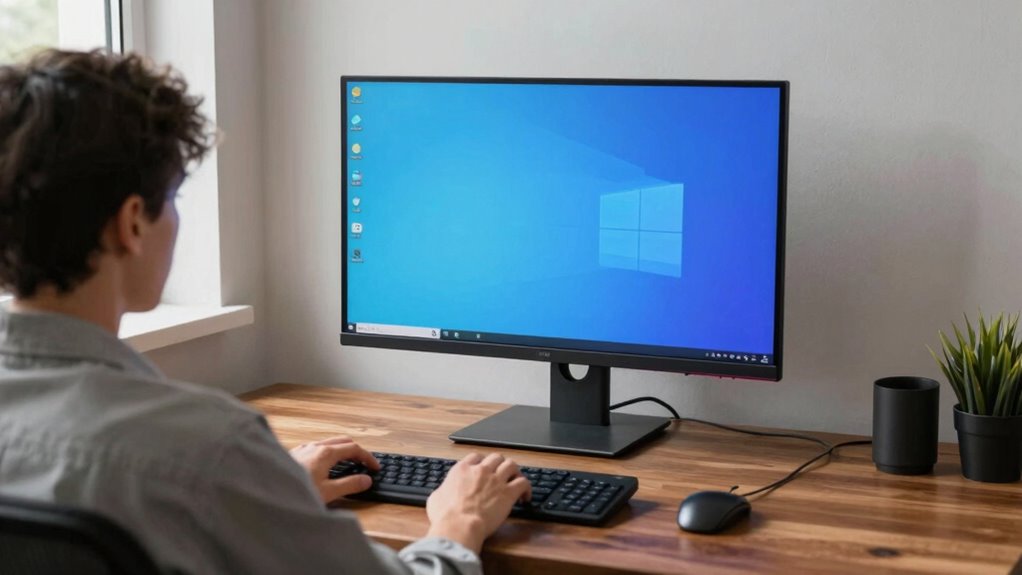
Your monitor distance directly impacts your eye health by reducing strain and preventing discomfort. When you sit too close or too far, your eyes work harder to focus, leading to fatigue and potential headaches. Following ergonomic tips helps you maintain the ideal distance, which is generally about an arm’s length away. Proper positioning minimizes eye strain and promotes better posture. If your monitor is too close, your eyes constantly adjust, causing fatigue; too far, and you strain to see details. Adjusting your monitor to the right distance ensures comfortable viewing and supports long-term eye health. Remember, small changes can make a big difference. Prioritizing ergonomic tips in your workspace helps you avoid unnecessary eye discomfort and promotes overall comfort during extended screen time. Additionally, choosing a monitor with good color accuracy can reduce eye strain by providing clearer, more natural images. Ensuring your workspace has adequate lighting conditions also plays a crucial role in minimizing eye fatigue during prolonged use. Being mindful of screen brightness and contrast settings further enhances visual comfort and reduces eye stress over time. Incorporating proper ergonomic setup into your routine can significantly improve your overall visual well-being and reduce fatigue.
Signs You’Re Sitting Too Close or Too Far From Your Screen
If you notice frequent eye strain or headaches after working at your screen, it might be a sign you’re sitting too close or too far away. Poor monitor distance can lead to ergonomic posture issues and increased screen glare, making your eyes work harder. Watch for these signs:
Frequent eye strain or headaches may indicate your monitor is too close or too far, affecting comfort and eye health.
- You constantly lean forward or backward to see clearly.
- You experience frequent eye fatigue or blurred vision.
- You adjust your screen brightness or tilt to reduce glare.
- You develop headaches, especially after long sessions.
- Your home setup might benefit from incorporating vintage-inspired ergonomics to enhance both style and comfort. Ensuring your workspace uses energy-efficient appliances can also contribute to a more sustainable environment while maintaining comfort. Additionally, adjusting your monitor height and angle can help promote better ergonomic posture and reduce strain.
These signs indicate your monitor may be too close or too far, affecting your comfort and eye health. Maintaining the correct distance helps reduce strain, minimizes glare, and supports proper ergonomic posture. Pay attention to these cues to optimize your workspace.
Quick and Easy Ways to Measure Your Perfect Monitor Distance
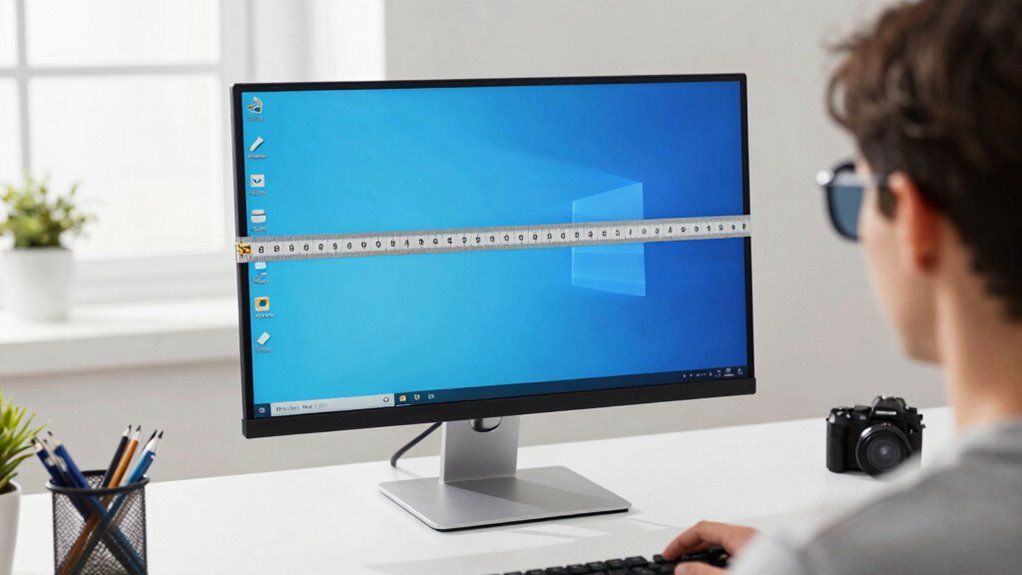
To quickly find your ideal monitor distance, try using your arm’s length as a guide—sit comfortably and see if your fingertips reach the screen. Alternatively, you can measure the distance with a ruler for a more precise setup. These simple methods help you set a comfortable, ergonomic viewing position with minimal effort. Proper monitor placement can also reduce eye strain and promote better overall comfort during extended use.
Use the Arm’s Length
Ever wonder how to quickly find the right monitor distance without complicated tools? Using your arm’s length is an easy method. Follow these steps:
- Sit comfortably with an ergonomic posture.
- Extend your arm straight out toward the monitor.
- Make sure your eyes are level with the top of the screen.
- Adjust the monitor so it’s just within that arm’s reach.
This method helps prevent screen glare and keeps your neck and eyes comfortable. Keep in mind, your monitor shouldn’t be too close—causing eye strain—or too far, which can lead to poor posture. By using your arm’s length as a guide, you ensure a natural, relaxed distance that minimizes eye fatigue and promotes good ergonomics. Simple, quick, and effective!
Measure With a Ruler
Looking for a quick way to measure your ideal monitor distance? Using a ruler is a straightforward measuring technique. First, verify your ruler is properly calibrated—check that zero lines up accurately with the edge. Sit comfortably at your usual viewing spot. Hold the ruler vertically against the monitor’s edge, extending it toward your eyes. Note the measurement where your eyes align; this is your current distance. Adjust the monitor until this measurement falls within the recommended range—usually about an arm’s length or 20-30 inches. This method provides an immediate, precise way to gauge if your monitor is too close or far. Proper measuring techniques are essential for maintaining good indoor air quality and overall comfort. Ensuring proper monitor placement can also help reduce eye strain and improve ergonomics.
How to Set Your Monitor at the Right Distance in Just 60 Seconds
Setting your monitor at the right distance is quick and easy when you follow a simple guide. Focus on ergonomic principles to maximize your visual comfort in just 60 seconds. Here’s how:
- Sit back in your chair, relax your shoulders, and look straight ahead.
- Hold a ruler or measuring tape at arm’s length, about 20-30 inches from your eyes.
- Position the monitor so the screen’s center aligns with your eye level.
- Confirm the monitor is close enough so your eyes are about 15-20 degrees below the top edge of the screen.
- Remember to adjust the monitor regularly to maintain optimal ergonomic comfort, preventing strain during long work sessions.
- Regular adjustments also help ensure your workspace maintains proper visual ergonomics, reducing long-term eye issues.
- Keep in mind that monitor positioning is a key factor in reducing eye fatigue and promoting overall comfort during extended use. Proper monitor placement not only improves visual clarity but also supports overall posture, enhancing your work experience.
- Incorporating adjustable monitor stands can make these modifications quicker and more precise for sustained comfort. This method helps you find the ideal distance that reduces eye strain, enhances comfort, and adheres to ergonomic principles, all within a minute.
Adjusting Your Monitor Height and Angle for Maximum Comfort
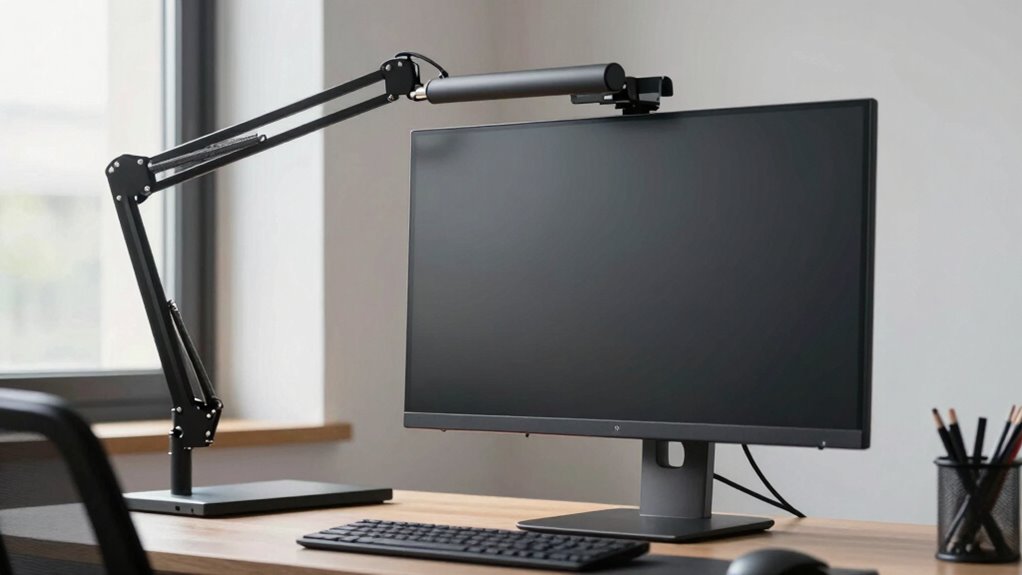
To stay comfortable during long hours, you need to adjust your monitor height so your eyes are level with the top of the screen. Finding the right viewing angle reduces strain and keeps your neck relaxed. An adjustable mount makes it easy to customize these settings for maximum comfort. Proper ergonomic setup can help prevent discomfort and improve your overall posture while working. Additionally, maintaining a proper workstation arrangement ensures that your entire workspace supports good posture and minimizes fatigue. Incorporating workspace ergonomics principles can further enhance your comfort and productivity throughout your workday. Moreover, using adaptive lighting can help reduce eye strain and create a more comfortable viewing environment. Paying attention to monitor placement and ensuring it aligns with ergonomic best practices can make a significant difference in your daily comfort.
Eye Level Alignment
Ensuring your monitor is at eye level is crucial for comfortable viewing and reducing strain. Proper eye level alignment helps maintain good ergonomics tips and supports eye health. To achieve the ideal setup: 1. Adjust your monitor height so the top of the screen is roughly at your eye level. 2. Tilt the screen slightly upward for natural viewing without neck strain. 3. Keep the monitor directly in front of you, avoiding twists or turns. 4. Use monitor risers or adjustable stands if needed to fine-tune height and angle. Additionally, consider ergonomic best practices to prevent discomfort during long periods of use.
Optimal Viewing Angle
Once your monitor is at eye level, fine-tuning the angle can considerably boost comfort. An ideal viewing angle promotes an ergonomic posture, reducing neck and eye strain. Tilt the monitor slightly upward or downward so that the top of the screen is near your eye level, but avoid extreme angles that force you to crane your neck or strain your eyes. Keep the monitor facing directly in front of you to prevent twisting your neck, which helps maintain proper alignment. Adjusting the tilt ensures your eyes hit the screen comfortably, minimizing glare and reflections. This setup enhances visual comfort and encourages a healthy, ergonomic workspace. Taking a moment to find the right angle ensures you can work longer without discomfort or fatigue. Proper monitor positioning can make a significant difference in your overall comfort during extended screen time, especially when considering factors like ergonomic workspace design. Proper positioning also helps prevent eye strain, which is common during prolonged use.
Adjustable Mount Benefits
An adjustable monitor mount offers the flexibility to easily set your screen at the perfect height and angle, directly enhancing your comfort throughout the workday. By customizing your monitor position, you can:
- Reduce neck strain, especially when used with ergonomic chairs.
- Attain ideal eye level, preventing eye fatigue.
- Improve keyboard placement by freeing up desk space and promoting proper posture.
- Easily switch between sitting and standing positions for better movement and circulation.
- Choosing the right lifestyle products can further support ergonomic and functional workspace setups.
Common Mistakes to Avoid When Positioning Your Monitor
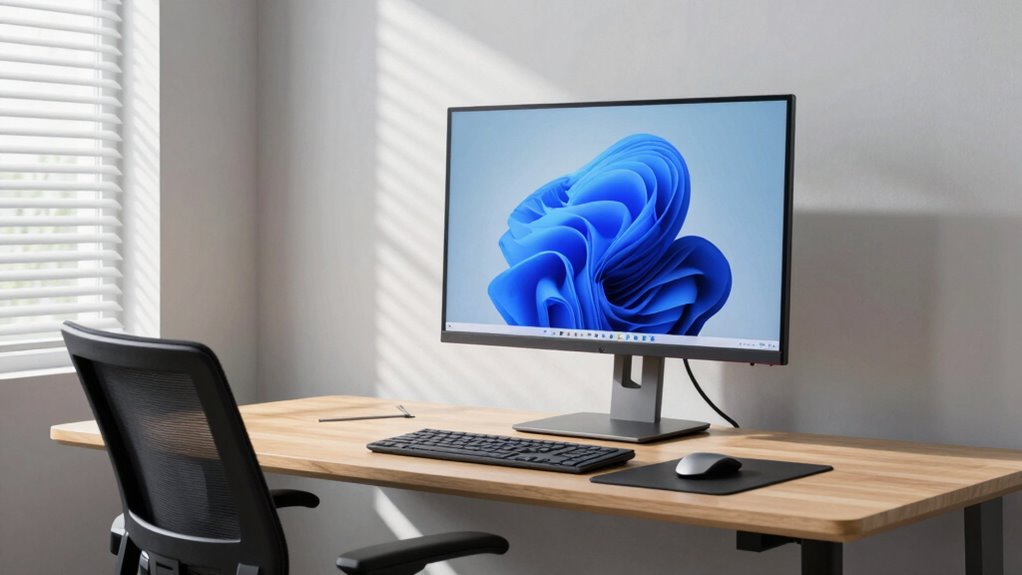
Many people make the mistake of placing their monitor too high or too low, which can cause neck strain and discomfort. Poor monitor positioning disregards ergonomic principles, leading to unnecessary fatigue. To avoid this, ensure your screen is at eye level, with the top of the monitor roughly aligned with your brow. Avoid slouching or craning your neck to see the screen clearly. Here’s a quick guide:
| Mistake | Fix |
|---|---|
| Placing monitor too high | Lower it so the top is at eye level |
| Placing monitor too low | Raise it to avoid tilting your head downward |
| Ignoring ergonomic principles | Follow proper monitor positioning guidelines |
Stick to proper ergonomic principles to keep your neck comfortable and maintain good posture.
Tools and Accessories to Help You Maintain the Right Monitor Distance

Using the right tools and accessories can make maintaining the ideal monitor distance much easier. Ergonomic accessories help you position your monitor correctly and reduce strain. Consider these options:
- Adjustable monitor arms: These allow precise height and distance adjustments, keeping your screen at eye level.
- Monitor calibration tools: Ensure your display’s brightness, contrast, and color are optimized, which can influence your perception of the correct distance.
- Riser stands: Elevate your monitor to prevent slouching and encourage proper posture.
- Distance markers or guides: Attach small stickers or use app-based tools to visualize the optimal distance consistently.
These accessories streamline the process, making it simple to keep your monitor at the perfect distance for comfort and eye health.
Reassess Your Setup Over Time to Keep Your Eyes Happy
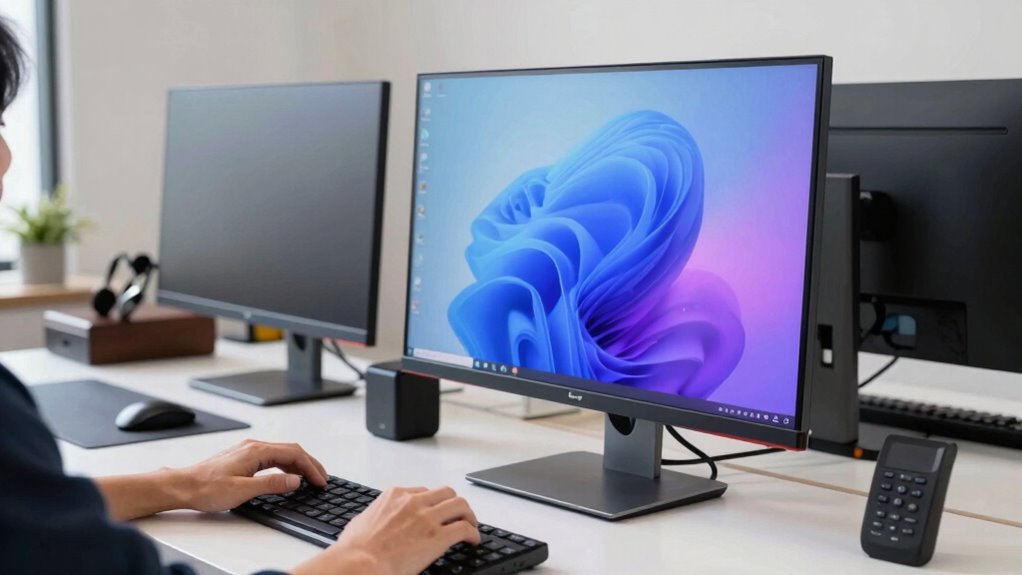
Regularly reassessing your monitor setup guarantees your eyes stay comfortable and healthy over time. As you work, ergonomic practices and workspace organization can shift, affecting your eye comfort. Make it a habit to check your monitor distance, height, and angle periodically. This helps prevent strain and maintains good posture. Use the following to guide your adjustments:
| Workspace Condition | Recommended Action |
|---|---|
| Monitor too high or low | Adjust height for eye level |
| Cluttered desk | Organize workspace for easy access |
| Monitor too close or far | Reassess distance for ideal viewing |
| Poor lighting | Improve lighting to reduce glare |
Frequently Asked Questions
Can Poor Monitor Distance Cause Long-Term Eye Damage?
Poor monitor distance can contribute to long-term eye damage by causing strain and discomfort, especially with prolonged exposure to blue light. When you sit too close or too far, your eyes work harder, increasing the risk of issues like digital eye strain. To protect your eyes, practice eye exercises regularly and limit blue light exposure by adjusting screen brightness or using blue light filters, ensuring a safer viewing distance.
What Is the Ideal Monitor Distance for Different Screen Sizes?
Think of your monitor as a window to clarity; the right distance reveals a sharper view. For screens under 24 inches, sit about an arm’s length away, roughly 20-24 inches. Larger screens, around 27 inches or more, benefit from being slightly farther, about 30 inches. Use ergonomic accessories for comfort, and regularly calibrate your monitor for peak visuals. This mindful setup keeps your eyes healthy and your focus sharp.
How Often Should I Recheck My Monitor Positioning?
You should recheck your monitor positioning every few weeks to ensure ideal comfort and productivity. During these checks, calibrate your monitor for accurate colors and adjust screen brightness to reduce eye strain. Also, verify the distance to prevent glare or eye fatigue. Regular adjustments help maintain the best viewing experience, especially if you change your workspace or notice discomfort, ensuring your monitor stays perfectly aligned and easy on your eyes.
Are There Specific Exercises to Reduce Eye Strain From Screens?
To reduce eye strain from screens, try simple eye exercises like focusing on a distant object for 20 seconds, then shifting focus to a closer one. Incorporate blinking techniques—blink frequently to keep your eyes moist and reduce dryness. Regularly practicing these eye exercises helps relax your eye muscles, while blinking techniques prevent dryness, making screen time more comfortable. Remember to take short breaks to further ease eye strain.
Do Ergonomic Guidelines Vary for Desktop and Laptop Monitors?
Yes, ergonomic guidelines differ slightly for desktops and laptops. For both, you should set the monitor height so your eyes are level with the top of the screen and keep the screen tilt at a comfortable angle. However, with laptops, using a stand and an external keyboard helps attain the proper monitor height and screen tilt, reducing strain. Prioritizing these adjustments ensures better comfort and reduces fatigue during long work sessions.
Conclusion
Now that you know how to find your perfect monitor distance in just 60 seconds, you’ll keep your eyes happy like a well-tuned instrument. Remember, your setup is a little like a cozy chair—once it’s just right, you’ll feel more comfortable and less strained. Check in regularly and make adjustments as needed. With a little attention, your workspace can be your best friend, helping you stay focused and pain-free all day long.